Notify Risk Calculator
Lots Size | Trade Executor | Trade Manager | All Order Types | 5 Accounts Per Key |
What You Get
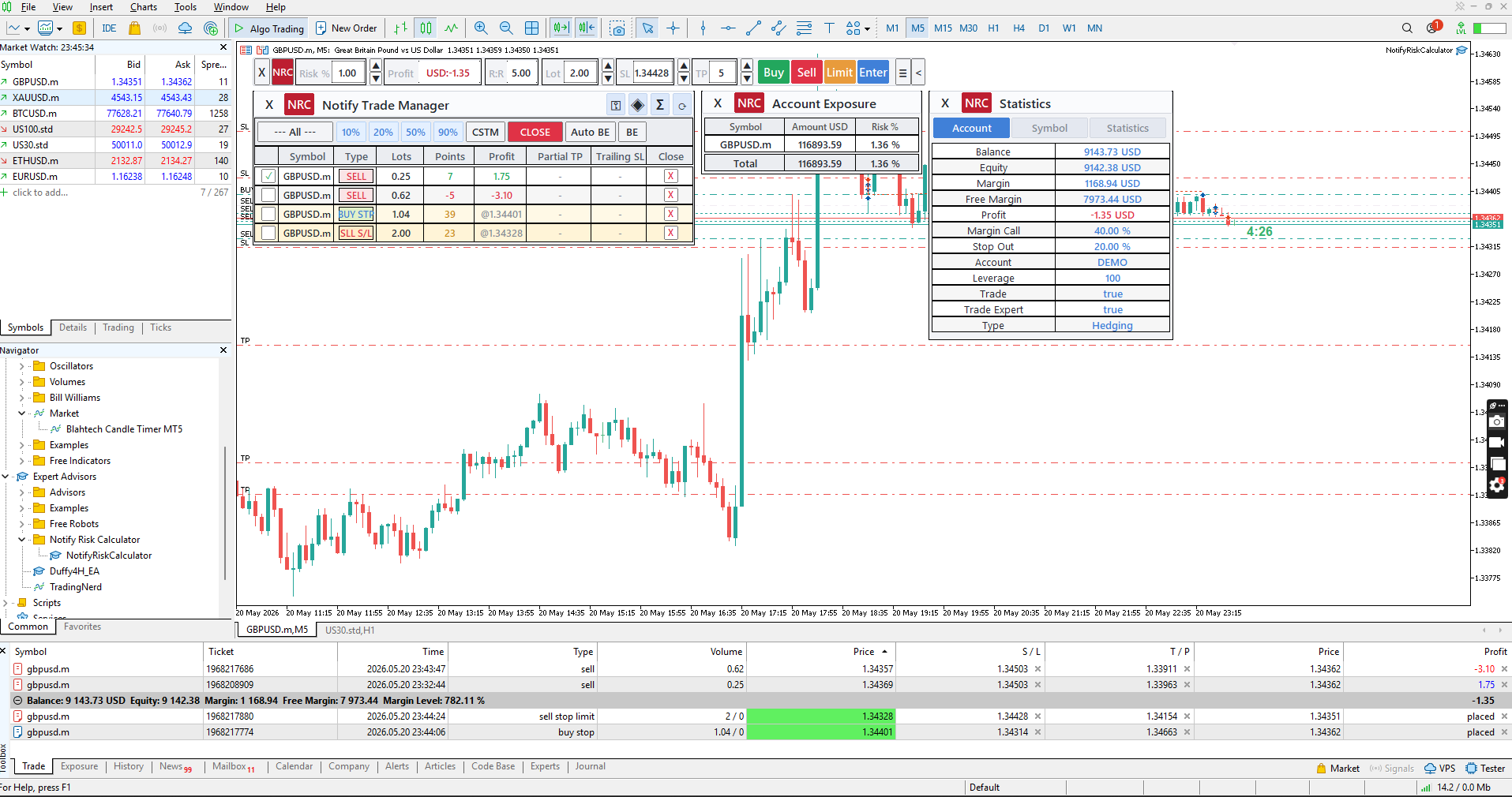
Preview
How to Install
Q: How do I install the EA?
A: Place the NotifyRiskCalculator.ex5 file into your MT5 Experts folder: File > Open Data Folder > MQL5 > Experts. Then refresh the Navigator panel in MT5, drag the EA onto a chart, enter your license key, and click OK. Full step-by-step instructions are in the setup_and_installation.txt file.
Q: The EA attached but no panel is showing. What do I do?
A: Check the following: 1. Make sure "Allow Algo Trading" is enabled in MT5 (Ctrl+E or the toolbar button should be green). 2. Check the Experts tab at the bottom of MT5 for any error messages. 3. Confirm your license key was entered correctly (no extra spaces). 4. Ensure WebRequest is enabled for: https://whop.notifytraders.workers.dev (Tools > Options > Expert Advisors > Allow WebRequest for listed URL)
Q: What is the WebRequest URL and why do I need to add it?
A: Notify Risk Calculator contacts the license server at https://whop.notifytraders.workers.dev to validate your key. MT5 blocks all web requests by default — you must manually whitelist this URL in Tools > Options > Expert Advisors. Without it, the EA cannot verify your license and will not load.
Q: I see "pending approval" after attaching the EA. Is something wrong?
A: No. This means your machine is not the first one registered to this license. The Main Account holder (the first machine that activated the key) needs to open the Account Manager inside MT5 and click "Approve" next to your machine. Notify Risk Calculator re-checks every 15 seconds — once approved, the panel will appear automatically without any action on your end.
Q: I am the Main Account but I cannot see pending requests. Why?
A: Open the Trade Manager (click the menu icon = on the toolbar), then click the key icon in the top-right of the Trade Manager. Click "Manage" to open the Account Manager. Pending machines appear in the "Pending Approvals" section. If the list is empty, click "Refresh" to reload from the server.
Frequently Asked Questions
What Traders Say
““This is the best trading bot I’ve used! Works perfectly on Windows and Mac, and the TradingView indicator is extremely accurate. My win-rate improved instantly. Highly recommended!””
Adeel R.
“I’ve tried many bots, but this one is next-level. The CTrader and MT5 versions run smoothly on my VPS 24/7. Support team replies fast and actually helps. Worth every dollar!”
Michael S.
“The TradingView indicator gives very clean signals. No repainting, no confusion. I use it daily for forex and crypto and it works great. Easy to set up, even for beginners.”
Fatima K.
“I bought the bot for Windows first, then upgraded to the Mac version. Both work flawlessly. My account grew consistently using their recommended settings. Amazing work!”
Jonathan M.
“Super powerful tools! The bot + indicator combo helped me automate half of my trades. The accuracy is solid, and the alerts are on time. Best purchase on Whop so far.”
Usman A.